FISSURE Playground #3 Analysis: Legacy, G2 and Key Lessons
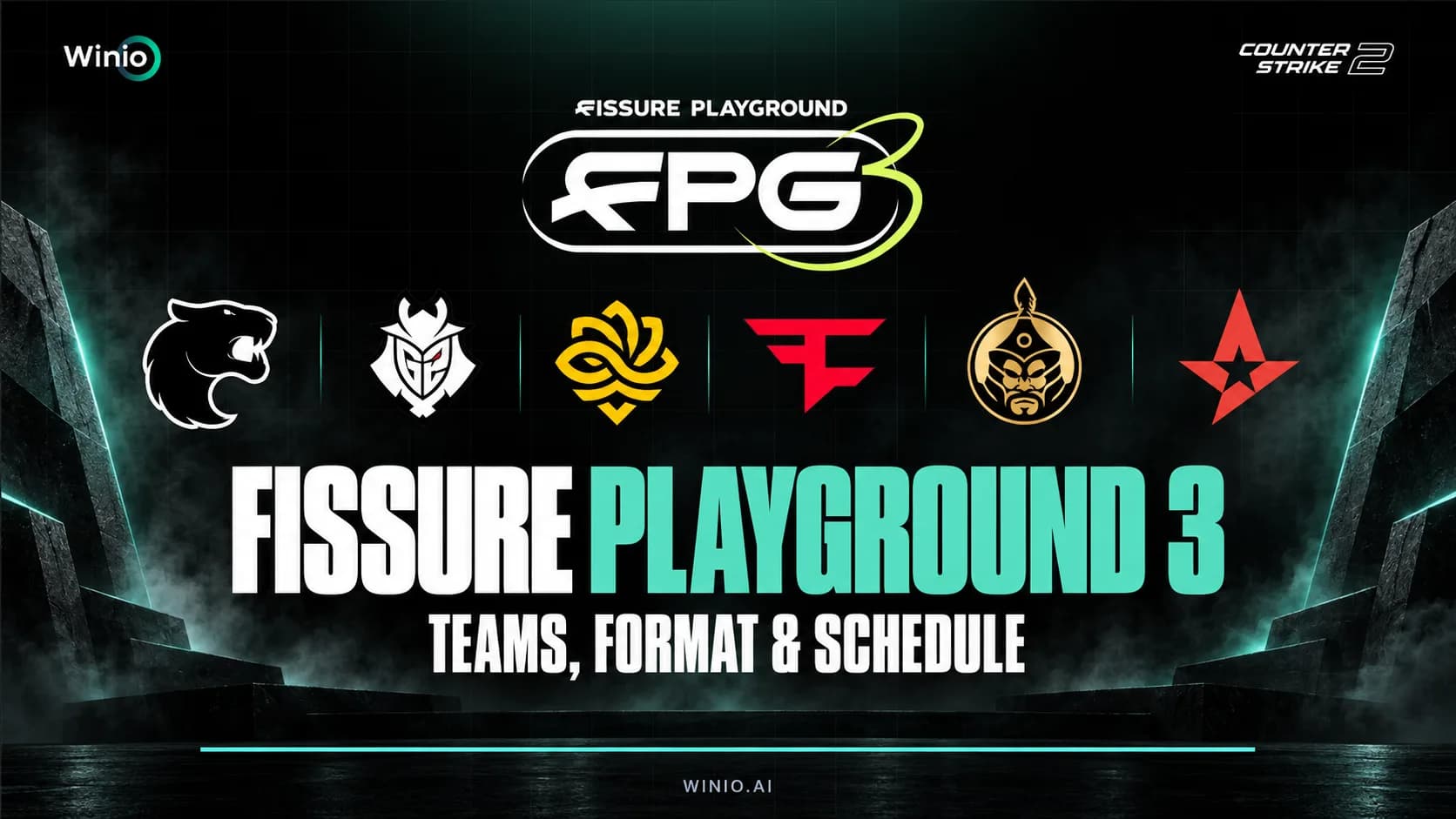
Why Legacy dominated FISSURE Playground #3, where G2 failed in the final, how 5star surprised the favorites and what the results mean for CS2.
September 17, 202609:26 AM10 min


In Counter-Strike 2, as in any competitive shooter, the outcome of a match is decided in a fraction of a second. That’s why connection stability is one of the most important factors for successful gameplay. Many gamers encounter situations where the ping seems low, but CS2 still feels "choppy," and opponents move in jerks.
The most common cause of this issue is net jitter CS2. With the transition to the subtick system, the game has become extremely sensitive to any fluctuations in the network signal. In this article, we will explain in detail what net jitter CS2 is, identify the reasons for its appearance, and provide a step-by-step guide on how to fix net jitter CS2.
If ping is the average delay time for data transmission from you to the server, jitter is the measure of how much that ping fluctuates.
Imagine your ping is 40 ms. If it remains stable at that level, the game will run smoothly. But if in one second it jumps from 40 ms to 100 ms and then back down to 20 ms — that’s high jitter.
Gamers Club Liga Serie A: September 2026
22.09 00:00
 RED Canids AcademyMIBR fe
Prediction: MIBR fe
European Pro League Series 9
Today 11:00
 NAVI JuniorBushido Wildcats
1. Micro-freezes: Characters may teleport small distances.
2. Hit registration delay: You see blood on the opponent, but the server doesn't register the damage.
3. Movement issues: Your character may experience rubber-banding, where they are thrown back to a previous position.
Understanding what causes net jitter CS2 will help you find a solution to the problem faster. Net Jitter is rarely related to the power of your PC; it's almost always a problem with the data path.
1. Wi-Fi usage: The most common culprit. Radio waves are susceptible to interference from walls, microwaves, and other devices.
2. Network congestion: If someone in your network is watching 4K videos or downloading files, the router may not be able to process gaming packets in time.
3. Outdated equipment: Old routers or damaged cables (for example, Cat5 instead of Cat6).
4. ISP issues: Poor routing to Valve servers or congestion on network nodes.
5. Background processes: Windows updates or cloud storage synchronization (OneDrive, Google Drive).
Before making changes to the game, system, and router settings, it’s useful to learn how to monitor your network’s status. In CS2, there’s an advanced telemetry system for this.


Checking through Command Prompt:
You can check your network stability outside the game. Open CMD (Command Prompt) and enter: ping google.com -t
If the ping times (ms) vary significantly (for example, 15ms, 40ms, 12ms), then the issue is with your network or provider.
If you have identified the issue, it's time to learn how to fix net jitter CS2. We’ve divided the methods into three levels of difficulty.
Valve has added a specific setting to compensate for network instability:

Note: This will add a slight delay but will make player movement smoother, removing stuttering caused by jitter.
If you are playing over Wi-Fi, no settings will help as much as a regular Ethernet cable. Cat6 cables provide the maximum stability and the lowest jitter.
By default, Windows may limit bandwidth for game packets.
Disable Nagle’s Algorithm: This can be done through the registry (parameter TcpAckFrequency). It forces the system to send packets instantly instead of waiting for them to accumulate.
Network priority: In Task Manager, ensure that Steam and CS2 have high priority, and background downloads are disabled.
The Quality of Service (QoS) feature allows the router to prioritize game packets in the queue.
Many players confuse these terms, but Net Jitter, Packet Loss, and Choke are not the same problem, and they have different symptoms and causes.
Symptoms: Stuttering, “teleportation” of models
Main Cause: Unstable Wi-Fi or routing issues
Symptoms: Shots not registering
Main Cause: Damaged cable / ISP issues
Symptoms: Delay in updating information
Main Cause: Low bandwidth or channel congestion
In CS:GO, we played with fixed tick rates (64 or 128). CS2 uses Subtick, which registers your actions at the exact moment a key is pressed.
With high jitter, packets containing your subtick actions may arrive at the server out of order or with varying delays. Because of this, shooting in CS2 feels much worse with an unstable internet compared to the previous version of the game.
For them, net jitter is critical. If the opponent's model "jerks" at the moment of firing due to a delay spike, you’ll miss the shot.
When spraying, net jitter disrupts visual recoil control, as the image updates unevenly.
Even grenade throws can become problematic. In CS2, the timing for jump-throws is very precise, and network fluctuations can cause important smokes to fall short.
We’ve covered what net jitter CS2 is and how it affects your gaming experience. The main advice on how to fix net jitter CS2 is to switch from a wireless connection to a wired one and properly configure in-game buffering. Remember, even the most powerful PC won’t help if data packets don’t always reach the server.
Professional players constantly monitor the quality of their internet connection. If you think net jitter isn’t a big issue, try comparing the quality of gameplay in official matches versus your own games. And to make tournament watching even more exciting, Winio offers every user five free esports predictions per month.
Yes, in some cases. If your provider uses overloaded nodes, specialized gaming VPNs can route traffic more efficiently and provide a more stable connection to Valve servers.
Ideally, jitter should be under 2-3 ms. If it exceeds 10-15 ms, you’ll start to feel discomfort in your controls.
No. FPS is related to your GPU and CPU performance. Jitter is purely a network characteristic. However, low FPS can cause visual lag that may appear similar to network stuttering.
This is due to network congestion from your provider. In the evening, when many people are streaming videos and downloading files, network nodes become overloaded, leading to what causes net jitter CS2.
If your current router is old and doesn’t support Wi-Fi 6 or lacks traffic prioritization features, upgrading to a modern gaming model can significantly improve the situation.
NAVI Junior
Bushido Wildcats

G2 Ares

Honvéd
ex-RUSTEC

Azuolas

Passion UA

IC Prospects

STATE

Teletubisie

Lavked

ENCE

Color

UPGRADE

Vitality

MIBR
NAVI Junior
Bushido Wildcats
G2 Ares
Honvéd
ex-RUSTEC
Azuolas
Passion UA
IC Prospects
STATE
Teletubisie
Lavked
ENCE
Color
UPGRADE
Vitality
MIBR
NAVI Junior
Bushido Wildcats
G2 Ares
Honvéd
ex-RUSTEC
Azuolas
Passion UA
IC Prospects
STATE
Teletubisie
Lavked
ENCE
Color
UPGRADE
Vitality
MIBR