CS2 Pets Guide: How to Get and Hatch a Chicken Egg
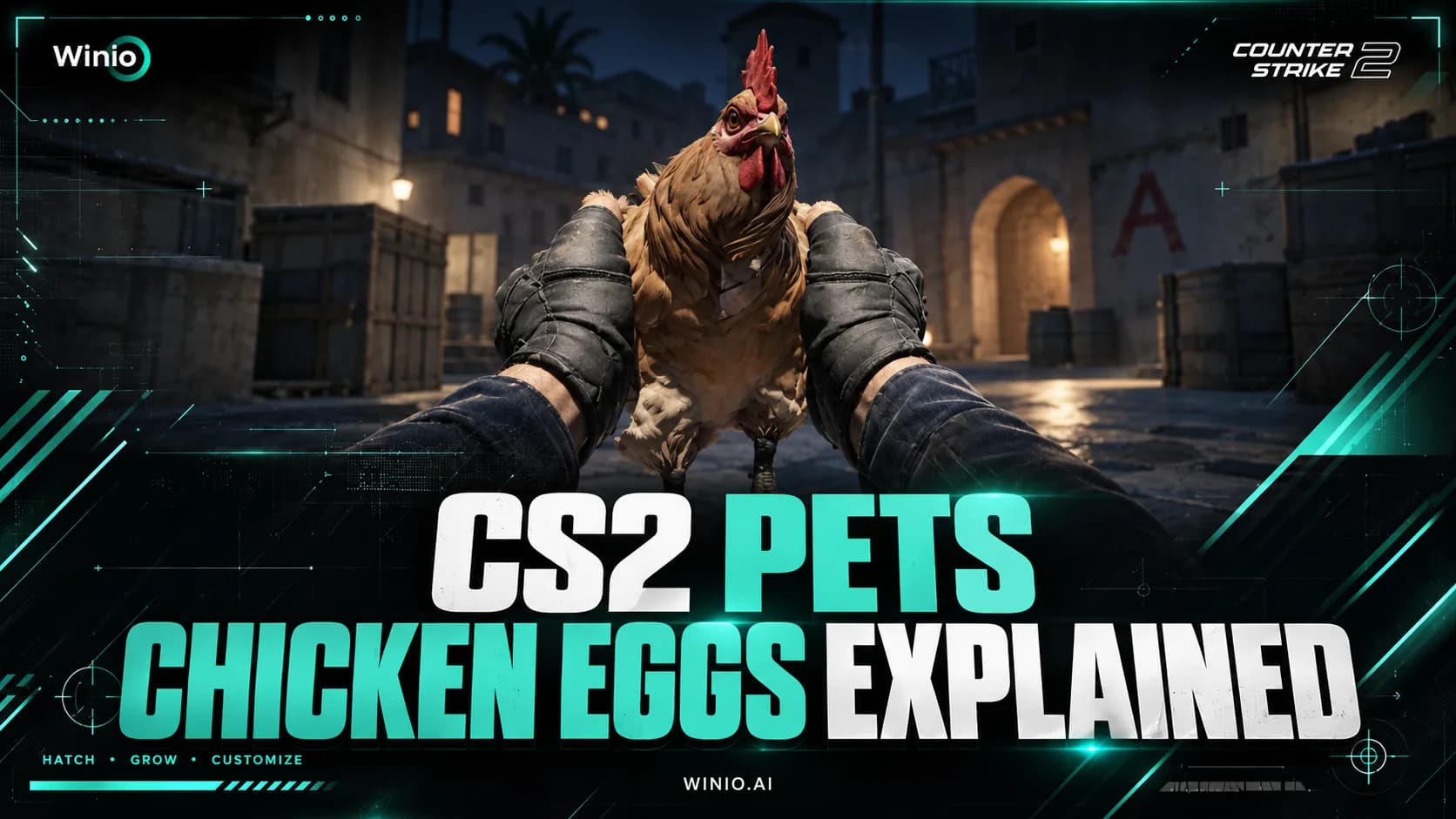
Learn how to get a Chicken Egg in CS2, how pets hatch and grow, all discovered chicken breeds, Pet Book features and current drop details.
October 1, 202607:54 AM10 min


Counter-Strike 2 does not have a native macOS version. Valve officially supports the game on Windows and Linux, which means Mac users cannot simply install CS2 through the regular macOS Steam client.
You can still play CS2 on a Mac through CrossOver, cloud gaming, or Windows installed with Boot Camp. The right method depends mainly on whether your Mac uses an Apple Silicon or Intel processor.
Yes, but not directly through macOS.
Apple Silicon Macs, including models with M1, M2, M3, M4, and newer chips, cannot install the Windows version of CS2 normally. They need either a compatibility tool such as CrossOver or a cloud gaming service.
Intel Macs have one additional option: installing Windows through Boot Camp. This runs CS2 inside Windows rather than translating or streaming the game.
The main options are:
CrossOver allows Windows applications and games to run on macOS without installing a complete Windows operating system. CodeWeavers added official CS2 support to CrossOver and provides a dedicated installation entry for the game.
CCT Eu 2026 Challengers #8
Tomorrow 16:45
 QuintessenceRyvex
Prediction: Quintessence
CIS LAN Championship #9
Today 09:00
 Virtus.proMeta
To install CS2 with CrossOver:
CrossOver offers a free trial, so you can test CS2 on your particular Mac before purchasing a license.
CrossOver is the most practical way to run CS2 locally on an Apple Silicon Mac, but the experience is not identical to native Windows.
Performance depends heavily on the processor, memory and cooling system. A MacBook Pro with a higher-end Apple chip will generally perform better than a base MacBook Air, especially during longer sessions when a fanless model may reduce performance to control temperature.
Translation also creates additional overhead. Even when the average frame rate looks acceptable, you may encounter shader compilation stutter, inconsistent frame times, graphical glitches or problems after a CS2 or Steam update.
For casual matches, community servers and practice, CrossOver can be sufficient. For serious competitive play, native Windows remains more reliable.
Start with the default CS2 configuration created by CrossOver. If the game stutters, CrossOver community guidance recommends using D3DMetal for graphics and MSync for synchronization.
Inside CS2, use:
Retina displays have very high native resolutions. Running CS2 at the full display resolution can substantially reduce performance without providing much benefit during normal gameplay.
Apple’s Game Porting Toolkit can also run or evaluate Windows games on macOS. However, Apple primarily provides it to developers who are testing and porting games to Apple platforms.
Using GPTK directly usually requires Terminal commands, manual configuration and more troubleshooting than CrossOver. CrossOver packages similar underlying technologies into a consumer-friendly interface, making it the better choice for most players.
GPTK may be useful for advanced users who enjoy experimenting with compatibility tools, but it is not the easiest way to play CS2 regularly.
Cloud gaming runs CS2 on a remote gaming computer and streams the video to your Mac. Your keyboard and mouse inputs are sent back to the server.
GeForce NOW supports CS2 and provides a native Mac application. Because the game runs on NVIDIA’s servers, your Mac does not need to translate the Windows version or render the game locally.
To play CS2 through GeForce NOW:
The free GeForce NOW tier may include queues and session limits. Paid plans generally provide better hardware, higher streaming quality and faster access.
Cloud gaming avoids most Mac compatibility and performance problems, but it adds network latency.
CS2 is a fast competitive shooter in which small delays affect aiming, movement and reaction time. Your input must travel to the cloud server before the resulting image is streamed back to you. This makes cloud play less responsive than running the game locally.
For the best result:
Cloud gaming is suitable for casual matches and players who simply want access to CS2 without configuring CrossOver. It is less suitable for highly competitive matchmaking.
Boot Camp Assistant is an Apple utility that installs Windows on a separate partition of an Intel-based Mac. When the Mac starts, you can choose between macOS and Windows.
Because CS2 runs directly in Windows, Boot Camp does not use a compatibility layer. This generally provides better compatibility and more predictable performance than CrossOver. Apple only supports Boot Camp on Intel-based Macs; it is not available for Apple Silicon models.
To install CS2 through Boot Camp:
Steam currently lists 85 GB of available storage in the CS2 minimum requirements. Windows and temporary game files require additional room, so the Boot Camp partition should be considerably larger than the game installation alone.
Boot Camp is only useful if the Intel Mac has sufficiently capable graphics hardware. Many older MacBook models use weak integrated graphics and may struggle with CS2 even though Windows itself installs correctly.
Apple’s official Boot Camp instructions focus on Windows 10. Microsoft ended standard Windows 10 support on October 14, 2025, although the operating system continues to function and eligible devices may use Extended Security Updates.
This makes Boot Camp a less future-proof option than it once was. It may still be practical for an existing Intel Mac, but installing an unsupported operating system solely for CS2 comes with security and maintenance concerns.
The best method depends on your Mac and how seriously you intend to play.
| Mac or situation | Recommended method |
|---|---|
| Apple Silicon Mac with good performance | CrossOver |
| Base or older Apple Silicon Mac | GeForce NOW |
| Intel Mac with capable graphics | Boot Camp |
| Mac with limited storage | Cloud gaming |
| Casual play with fast internet | Cloud gaming |
| Lowest possible local latency | Boot Camp |
| Advanced experimentation | Game Porting Toolkit |
For most Apple Silicon users, CrossOver is the first option worth testing. It runs the game locally and does not add cloud latency, while its free trial lets you check performance before paying.
Cloud gaming is easier and does not require a powerful Mac, but network delay is an unavoidable disadvantage. Intel Mac users can consider Boot Camp, although the age of Intel Mac hardware and the end of standard Windows 10 support make it a temporary solution rather than an ideal long-term setup.
Regardless of the method, several changes can improve the experience.
Do not run CS2 at the full native resolution of a Retina display unless your Mac can maintain a stable frame rate. Try 1920×1080, 1680×1050 or a lower resolution with a similar aspect ratio.
Lower resolution usually provides a larger performance improvement than changing individual visual settings.
Reduce shadows, ambient occlusion, particle detail, shader detail and texture filtering. In a competitive game, stable frame delivery is generally more useful than additional visual quality.
Texture quality may depend on available memory. Macs with less unified memory should use lower texture settings and close other applications before launching the game.
MacBooks may reduce performance when running on battery. Connect the charger and disable Low Power Mode before starting CS2.
Browsers with many open tabs, video editors, communication applications and background synchronization tools can consume memory and processing resources. Close anything unnecessary before launching CrossOver or a cloud gaming client.
Use the Mac on a hard surface with clear airflow. Avoid placing a MacBook on a bed or soft furniture that blocks cooling.
Fanless MacBook Air models may lose performance during extended sessions because they rely on passive cooling. Lowering the resolution and frame-rate limit can produce a more stable experience than allowing the game to run as fast as possible initially.
A wired connection helps both local and cloud play. It can reduce packet loss and Wi-Fi interference during normal CS2 matches, while cloud gaming benefits even more because every frame depends on the network connection.
The regular macOS Steam client cannot install the Windows version of CS2. Open Steam through CrossOver, Windows in Boot Camp, or a supported cloud gaming service instead.
Switch between fullscreen and windowed mode, restart the CrossOver bottle and confirm that D3DMetal is enabled. CrossOver users have also reported that switching away from the game and returning to it can restore the image in some cases.
Initial stuttering may occur while shaders are being processed. Allow the game to run for several minutes, test a practice map and restart it before judging overall performance.
You can also try the D3DMetal and MSync combination recommended in the CrossOver compatibility tips.
Open the macOS Audio MIDI Setup utility, select the active output device and try a different output format. CrossOver community guidance specifically suggests testing a 96 kHz format for crackling CS2 audio.
Choose a closer server, use Ethernet, stop other network activity and reduce the stream resolution or bitrate. A high frame rate does not eliminate latency if the connection to the cloud server is slow.
Install all Boot Camp driver updates, lower the game resolution and check whether the Mac has a dedicated graphics processor. Some Intel Macs simply do not have enough graphics performance to run CS2 smoothly.
CS2 does not support macOS natively, but Mac users still have several ways to access the game.
CrossOver is the most practical local option for Apple Silicon Macs. GeForce NOW is easier and works without demanding local hardware, although network latency limits its competitive value. Boot Camp can provide the closest experience to a normal Windows installation, but it only works on Intel Macs and relies primarily on Windows 10.
None of these methods is as consistent as playing CS2 on a supported Windows PC. However, for casual matches or occasional play, CrossOver and cloud gaming can make CS2 usable on modern Macs.
Virtus.pro
Meta

BAKS

Sökerorg

eSuba

KAMUI

BRUTE
ex-6666

FOKUS

UNiTY

magic

The MongolZ
SINNERS

HEROIC

Saint Sinners
ex-6666
Virtus.pro
Meta
BAKS
Sökerorg
eSuba
KAMUI
BRUTE
ex-6666
FOKUS
UNiTY
magic
The MongolZ
SINNERS
HEROIC
Saint Sinners
ex-6666
Virtus.pro
Meta
BAKS
Sökerorg
eSuba
KAMUI
BRUTE
ex-6666
FOKUS
UNiTY
magic
The MongolZ
SINNERS
HEROIC
Saint Sinners
ex-6666