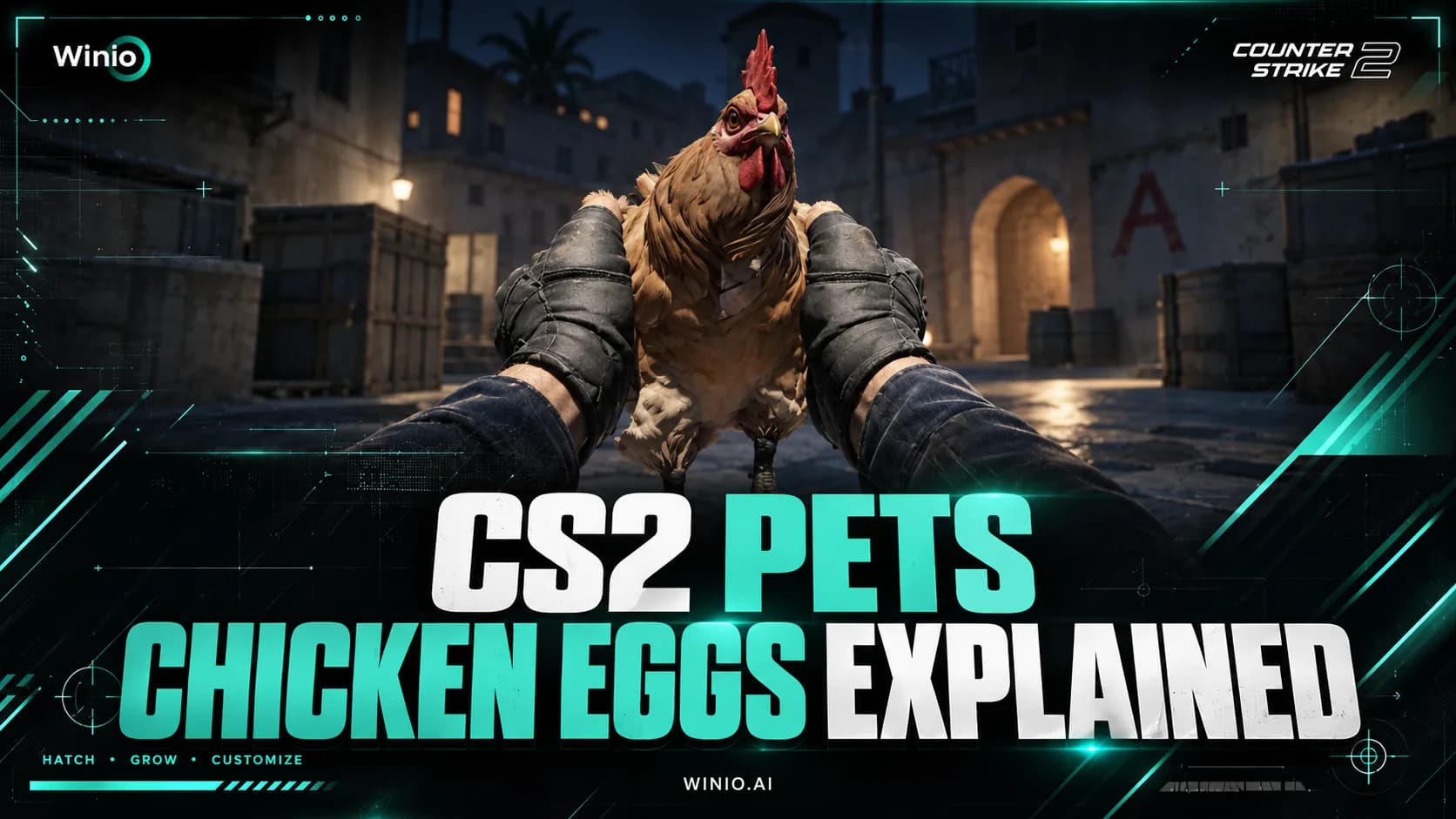
CS2 Pets Guide: How to Get and Hatch a Chicken Egg
Learn how to get a Chicken Egg in CS2, how pets hatch and grow, all discovered chicken breeds, Pet Book features and current drop details.
October 1, 202607:54 AM10 min


Maksim “kyousuke” Lukin is an 18-year-old Russian rifler currently playing for Falcons. After developing in Team Spirit Academy, he quickly established himself as one of the most mechanically dangerous young players in professional Counter-Strike.
His setup follows a familiar competitive formula: stretched 4:3 resolution, moderate sensitivity, a small static crosshair and mostly low graphics settings. However, several parts of his configuration—including the crosshair—change regularly.
This guide covers the latest verified kyousuke CS2 settings available in August 2026, explains how to apply them and separates current values from older configurations still circulating online.
| Setting | Current value |
|---|---|
| DPI | 800 |
| Sensitivity | 1.28 |
| eDPI | 1024 |
| Resolution | 1280×960 |
| Aspect ratio | 4:3 stretched |
| Crosshair style | Classic Static |
| Crosshair size | 2 |
| Crosshair thickness | 0 |
| Crosshair gap | -3 |
| FPS limit | 500 |
| Zoom sensitivity | 1.0 |
Kyousuke uses a slightly faster sensitivity than many professional riflers. It remains controlled enough for accurate first bullets and spray transfers but gives him enough speed for aggressive peeks and quick target switches.
| Setting | Value |
|---|---|
| DPI | 800 |
| Sensitivity | 1.28 |
| eDPI | 1024 |
| Zoom sensitivity | 1.0 |
| Polling rate | 1000 Hz |
| Windows sensitivity | 6 |
The eDPI value is calculated by multiplying DPI by in-game sensitivity:
800 × 1.28 = 1024 eDPI
NODWIN Clutch Series #14
05.11 18:00
 BASEMENT BOYSMisa
Prediction: BASEMENT BOYS
CCT Eu 2026 Series #13 Play-In
Today 21:00
 DONSTUmegoshort
An eDPI of 1024 sits above the very low-sensitivity setups used by some riflers, but it is not unusually fast. It provides a practical balance between precise corrections and quick movement across the screen.
Players switching from a lower sensitivity should not expect the setup to feel natural immediately. It is better to test 1.28 for several sessions before deciding whether to lower it.
Kyousuke changes his crosshair frequently and has used different configurations between tournaments and even individual maps. The settings below come from his most recently recorded match configuration in July 2026.
| Setting | Value |
|---|---|
| Style | Classic Static |
| Follow Recoil | No |
| Center dot | No |
| Length | 2 |
| Thickness | 0 |
| Gap | -3 |
| Outline | No |
| Color | Yellow |
| Alpha | 255 |
| T Style | No |
| Deployed weapon gap | No |
Current crosshair code:
CSGO-VDZFp-ePkr4-vGith-8aWiX-sntiB
The crosshair is thin, open and easy to read on a stretched resolution. Its yellow color provides strong contrast on many surfaces, while the absence of an outline keeps the center of the screen clear.
To import the crosshair through the CS2 menu:
You can also recreate it through the developer console:
Older articles often list a green crosshair with size 1, thickness 1 and gap -4. Kyousuke has used similar configurations before, but they are no longer the latest recorded version.
Recent first-hand information shows kyousuke using the second built-in viewmodel preset:
This is the safest value to use if the goal is to reproduce the setup he recently demonstrated.
Several settings databases still associate him with the following custom viewmodel:
That configuration places the weapon farther to the side and lower on the screen. It remains a useful alternative, but it should not be combined with viewmodel_presetpos 2 and presented as one simultaneous setup.
Kyousuke does not normally use a bind to switch weapon hands. For players who find that the weapon blocks an important angle, however, keeping a hand-switch bind remains a reasonable personal adjustment.
Kyousuke uses 1280×960 with a stretched 4:3 aspect ratio. This enlarges player models horizontally and reduces the amount of peripheral information visible compared with 16:9.
| Setting | Value |
|---|---|
| Resolution | 1280×960 |
| Aspect ratio | 4:3 |
| Scaling mode | Stretched |
| Display mode | Fullscreen |
| Brightness | 93% |
| Boost Player Contrast | Enabled |
| V-Sync | Disabled |
| NVIDIA G-Sync | Disabled |
| NVIDIA Reflex Low Latency | Disabled |
| Maximum FPS | 500 |
| MSAA | 8x |
| Global Shadow Quality | Low |
| Dynamic Shadows | All |
| Model/Texture Detail | Low |
| Texture Filtering | Anisotropic 2x |
| Shader Detail | Low |
| Particle Detail | Low |
| Ambient Occlusion | Disabled |
| High Dynamic Range | Quality |
| FidelityFX Super Resolution | Disabled |
Some settings databases list Bilinear texture filtering instead of Anisotropic 2x. The difference has little effect on the overall character of the setup: almost every demanding visual option remains low or disabled, while 8x MSAA keeps object edges relatively clean.
Stretched 4:3 does not change hitboxes or make enemies physically easier to hit. It only changes how the image is displayed.
Player models appear wider, but they also move across the screen faster. Some riflers find the wider targets more comfortable for tracking and spray transfers, while others prefer the additional peripheral vision of 16:9.
The lower resolution can also reduce GPU load, although CPU performance remains extremely important when targeting several hundred frames per second in CS2.
Two details are worth separating from the otherwise low graphics preset.
Boost Player Contrast remains enabled. This helps player models stand out against the environment, particularly at longer distances or around darker surfaces.
Global Shadow Quality is set to Low, but Dynamic Shadows is set to All. This combination preserves useful real-time enemy shadows without spending additional performance on higher-quality shadow rendering.
NVIDIA Reflex is currently reported as disabled. That does not mean disabling Reflex will improve every system. Players with different hardware should test the option themselves instead of treating a professional config as a universal performance preset.
Kyousuke uses a conventional HUD with an active rotating radar.
| Setting | Value |
|---|---|
| HUD scale | 1 |
| HUD color | Team Color |
| Radar centers the player | Yes |
| Radar rotates | Yes |
| Radar HUD size | 1 |
| Scoreboard changes radar shape | Yes |
He also uses a bind that changes radar zoom to approximately 0.25. The wider view helps him follow teammate positions and understand what is happening across several levels of maps such as Nuke.
This explains why static databases sometimes report different radar zoom values. A bind allows the player to switch between multiple zoom levels depending on the situation.
Kyousuke currently reports using no CS2 launch options.
Older lists commonly attribute the following commands to him:
These should not be treated as part of his current setup. In particular, -allow_third_party_software changes how CS2 handles external software and should not be added without a specific reason.
Instead of using launch options, kyousuke disables controller support and the Steam Overlay through Steam. The Overlay is turned off to prevent it from opening accidentally during a match.
Kyousuke reportedly uses the default audio equalizer rather than a highly customized sound profile. Reliable values for his master, music and voice volumes are not publicly available.
He also changes ragdoll prediction depending on where he plays. It is enabled on LAN but disabled at home, where higher latency can make the behavior less predictable.
Claims about specific HRTF, music or voice-volume values should therefore be treated as generic recommendations rather than kyousuke’s verified settings.
A complete professional config can contain personal binds that overwrite existing controls. Back up your files before installing anything.
CS2 config files belong in:
Steam\steamapps\common\Counter-Strike Global Offensive\game\csgo\cfg
After placing the file in that folder, open the developer console and enter:
If the file has another name, replace autoexec with that filename.
You can optionally add this command to the CS2 launch options:
This command is useful for loading your own autoexec, but it is not one of kyousuke’s current launch options.
Downloadable kyousuke config archives may contain older settings. The most reliable approach is to import the latest crosshair separately and apply the verified mouse, video and viewmodel values manually.
The monitor profile most commonly associated with kyousuke uses high brightness and increased color separation:
| Setting | Value |
|---|---|
| DyAc | Premium |
| Black eQualizer | 15 |
| Color Vibrance | 15 |
| Brightness | 100 |
| Contrast | 60 |
| Sharpness | 7 |
| Gamma | Gamma 2 |
| Color Temperature | Normal |
| AMA | High |
| Low Blue Light | 0 |
| Picture Mode | Standard |
These values are designed for competitive visibility rather than natural color reproduction. Brightness 100 and Color Vibrance 15 may look harsh during long sessions, especially outside CS2.
Monitor settings can also change at tournaments. Kyousuke has said that he sometimes checks the profile left by the previous player and keeps it if the image looks good.
Different sources list slightly different devices because kyousuke changes equipment and uses event-provided hardware. The following products have been associated with his recent setup:
| Equipment | Recently reported model |
|---|---|
| Monitor | ZOWIE XL2586X+ |
| Mouse | Logitech G Pro X Superlight 2 |
| Keyboard | Wooting 80HE Frost |
| Headset | HyperX Cloud II |
| Mousepad | SteelSeries QcK Heavy |
Earlier first-hand setup information showed a Logitech G Pro keyboard with blue switches, while some databases still list the ZOWIE XL2546K monitor. These differences are normal and do not affect the core in-game settings.
Kyousuke’s resolution, graphics options and crosshair provide a useful competitive starting point. They prioritize model visibility, high frame rates and an unobstructed center of the screen.
Sensitivity requires more caution. An eDPI of 1024 may feel fast to players accustomed to very low sensitivity, while the stretched image makes horizontal movement appear quicker. Copying both at once can make the game feel unusually unstable.
A practical approach is to test the setup in stages:
Kyousuke’s CS2 setup is built around aggressive rifle play: 1024 eDPI, stretched 1280×960 resolution, a thin static crosshair and graphics settings focused on performance and visibility.
The individual values are useful, but they are not the source of his mechanics. Crosshair placement, movement, positioning and thousands of hours of practice matter far more than matching every number.
Use the configuration as a tested competitive baseline, then adjust it around your own hardware, desk space and aiming style.
DONSTU
megoshort
9INE

Revise

Johnny Speeds

SINQU

Quintessence

RED Canids Academy

BetBoom

Aurora

Liquid

TYLOO

Natus Vincere

B8

Falcons

HEROIC
DONSTU
megoshort
9INE
Revise
Johnny Speeds
SINQU
Quintessence
RED Canids Academy
BetBoom
Aurora
Liquid
TYLOO
Natus Vincere
B8
Falcons
HEROIC
DONSTU
megoshort
9INE
Revise
Johnny Speeds
SINQU
Quintessence
RED Canids Academy
BetBoom
Aurora
Liquid
TYLOO
Natus Vincere
B8
Falcons
HEROIC