CS2 Pets Guide: How to Get and Hatch a Chicken Egg
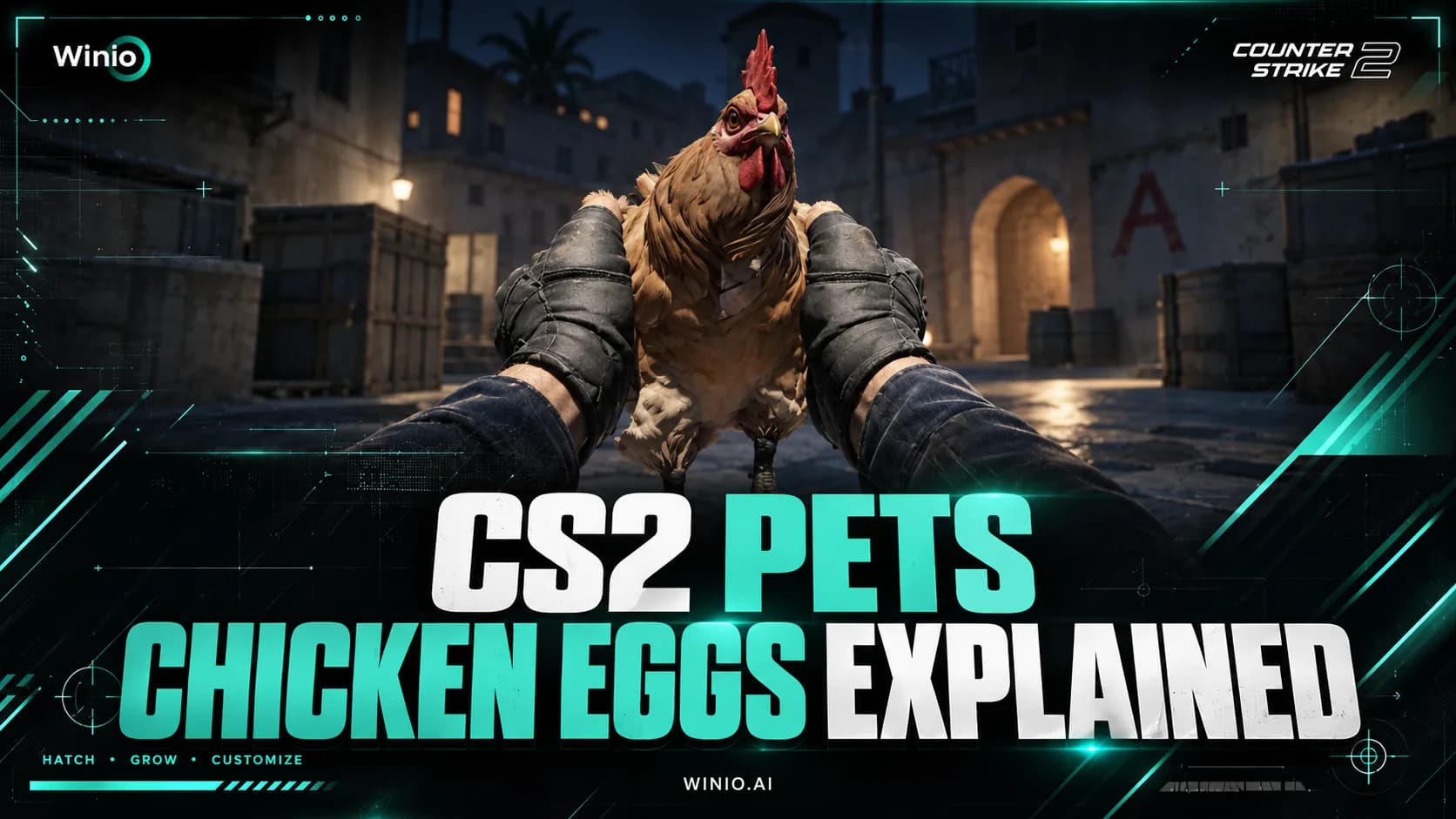
Learn how to get a Chicken Egg in CS2, how pets hatch and grow, all discovered chicken breeds, Pet Book features and current drop details.
October 1, 202607:54 AM10 min


Ilya “m0NESY” Osipov is one of the most mechanically gifted AWPers in professional Counter-Strike. Currently representing Falcons Esports, he is known for explosive flicks, aggressive positioning, and the confidence to take difficult opening duels.
His CS2 setup reflects that style. m0NESY uses a moderately high sensitivity, stretched 4:3 resolution, a minimal crosshair, and video settings designed to balance visibility with performance.
This guide covers m0NESY’s current mouse, crosshair, viewmodel, video, radar, monitor, and equipment settings.
m0NESY uses 400 DPI with an in-game sensitivity of 2.3. This produces an eDPI of 920, which is relatively high for a professional AWPer.
| Setting | Value |
|---|---|
| DPI | 400 |
| Sensitivity | 2.3 |
| eDPI | 920 |
| Zoom Sensitivity | 1.0 |
| Polling Rate | 2000 Hz |
| Windows Sensitivity | 6/11 |
Some older guides still show a sensitivity of 2.0 and an eDPI of 800. His more recent setup uses 2.3 sensitivity, giving him slightly faster movement without entering the extremely high sensitivity range.
IEM Beijing 2026
Tomorrow 09:30
 PARIVISIONNatus Vincere
Prediction: Natus Vincere
BLAST Rivals Fall 2026
11.11 07:30
 VitalityFalcons
AWPers do not always use lower sensitivity than riflers. An aggressive sniper frequently needs to turn quickly, react to opponents appearing outside the scope, and switch between targets during chaotic fights.
A 920 eDPI setup supports m0NESY’s mobile style. It also makes fast scoped corrections easier, although players with less precise mouse control may find it harder to keep steady.
m0NESY currently uses a very small static crosshair with no dot or outline. It occupies little space around the center of the screen and remains unobtrusive when using rifles or pistols.
| Setting | Value |
|---|---|
| Style | Classic Static |
| Follow Recoil | No |
| Dot | No |
| Length | 1 |
| Thickness | 1 |
| Gap | -4 |
| Outline | No |
| Alpha | 200 |
| T Style | No |
CSGO-eycw8-ZF7yv-FJiYt-OU9zn-7JXoN
This is the newest recorded version of his crosshair. m0NESY changes his crosshair regularly, which is why older codes are still common on settings websites and in config collections.
To import it through the CS2 menu:
The crosshair can also be reproduced through the developer console:
Its compact size works particularly well at 1280×960 stretched, where player models already appear wider on the screen. At higher native resolutions, some players may prefer slightly more length or thickness.
m0NESY uses a familiar competitive viewmodel with the maximum field of view and the weapon moved toward the right and lower edge of the screen.
| Setting | Value |
|---|---|
| Viewmodel FOV | 68 |
| Offset X | 2.5 |
| Offset Y | 0 |
| Offset Z | -1.5 |
| Preset Position | 3 |
This positioning reduces the amount of central screen space occupied by the weapon model. It does not affect recoil or weapon accuracy, but it can make fights feel less visually cluttered.
m0NESY plays at 1280×960 with a stretched 4:3 aspect ratio. His advanced settings keep most visual details low, while shadows remain high enough to preserve useful competitive information.
| Setting | Value |
|---|---|
| Resolution | 1280×960 |
| Aspect Ratio | 4:3 |
| Scaling Mode | Stretched |
| Display Mode | Fullscreen |
| Brightness | 93% |
| Setting | Value |
|---|---|
| Boost Player Contrast | Enabled |
| V-Sync | Disabled |
| NVIDIA Reflex Low Latency | Disabled |
| NVIDIA G-Sync | Disabled |
| Maximum FPS In Game | 999 |
| Multisampling Anti-Aliasing | 8x MSAA |
| Global Shadow Quality | High |
| Dynamic Shadows | All |
| Model / Texture Detail | Low |
| Texture Filtering | Bilinear |
| Shader Detail | Low |
| Particle Detail | Low |
| Ambient Occlusion | Disabled |
| High Dynamic Range | Quality |
| FidelityFX Super Resolution | Disabled |
The use of high global shadows is intentional. Shadows can reveal opponents before their models become visible, so reducing every graphics option to its minimum is not always the best competitive configuration.
Eight-times MSAA keeps model edges relatively clean at a lower resolution. It requires more GPU performance, but professional tournament systems can generally maintain the necessary frame rate.
A stretched 4:3 image makes player models look wider than they do at 16:9. This can make targets easier to see and may feel more comfortable during fast flicks.
However, stretched resolution does not enlarge hitboxes. It also makes horizontal movement appear faster and removes some peripheral vision compared with a widescreen resolution.
Players who find 1280×960 blurry can try 1440×1080 stretched. It preserves the same aspect ratio while producing a sharper image, although it is not m0NESY’s recorded resolution.
m0NESY uses a zoomed-out rotating radar that remains centered on his position.
| Setting | Value |
|---|---|
| HUD Scale | 1.0 |
| HUD Color | Blue |
| Center Player | Yes |
| Rotate Radar | Yes |
| Toggle Shape With Scoreboard | Yes |
| Radar HUD Size | 0.91 |
| Radar Map Zoom | 0.4 |
A radar zoom of 0.4 displays more of the map at once. This helps with tracking teammate positions, spotting enemy information, and understanding rotations without opening the full map.
Relevant console commands include:
m0NESY’s current setup does not use any custom launch options.
Old config pages sometimes attach commands such as -novid, -high, -threads, or -freq to his setup. These should not be treated as part of his current configuration, and several common legacy commands are either unnecessary or obsolete in CS2.
CS2 configuration files are normally placed in the game’s cfg folder:
Steam\steamapps\common\Counter-Strike Global Offensive\game\csgo\cfg
To install a downloaded config:
An autoexec can be loaded automatically by naming the file autoexec.cfg. If it does not run on startup, add the following command to CS2’s launch options:
+exec autoexec.cfg
Back up existing binds before replacing any files. A professional player’s complete config may change controls, audio preferences, radar behavior, and other settings that are unrelated to aim.
m0NESY is currently associated with the 600 Hz ZOWIE XL2586X+ monitor.
| Setting | Value |
|---|---|
| DyAc | Premium |
| Black eQualizer | 12 |
| Color Vibrance | 10 |
| Low Blue Light | 0 |
| Picture Mode | Gamer 1 |
| Brightness | 100 |
| Contrast | 50 |
| Sharpness | 10 |
| Gamma | Gamma 2 |
| Color Temperature | Normal |
| AMA | High |
These values prioritize motion clarity and visibility rather than natural-looking colors. Brightness at 100 may be uncomfortable on a different monitor or in a dark room, so it should not be copied without adjustment.
| Equipment | Model |
|---|---|
| Monitor | ZOWIE XL2586X+ |
| Mouse | Logitech G Pro X Superlight 2 White |
| Keyboard | Logitech G Pro X2 RAPID White |
| Headset | Logitech G Pro X3 |
| Mousepad | SteelSeries QcK Heavy |
| Earphones | Logitech G333 White |
The Logitech G Pro X2 RAPID keyboard and G Pro X3 headset have been observed in recent event footage but remain unreleased. Their names and final retail specifications may change.
The SteelSeries QcK Heavy is a thick control-oriented cloth pad. Its slower surface complements m0NESY’s relatively fast sensitivity by providing more stopping power during precise adjustments.
| Component | Model |
|---|---|
| Processor | AMD Ryzen 7 9800X3D |
| Graphics Card | ASUS ROG Strix RTX 4080 Super |
| SSD | Samsung 970 EVO Plus 500GB |
| Cooling | NZXT Kraken X73 |
| Case | NZXT H710i |
Tournament PCs may differ from a player’s personal system. These specifications therefore matter less when recreating the setup than the mouse, crosshair, resolution, and viewmodel values.
m0NESY’s setup is a useful starting point for aggressive AWPers, but copying every value will not reproduce his mechanics. His sensitivity depends on years of developed mouse control, while his stretched resolution is partly a matter of familiarity.
The safest approach is to test the crosshair, viewmodel, and video configuration first. Sensitivity should only be changed if 920 eDPI feels comfortable and controllable across both scoped and unscoped weapons.
m0NESY’s CS2 settings are built for fast, confident AWPing. His 920 eDPI sensitivity allows rapid reactions, while 1280×960 stretched increases the apparent width of player models and keeps performance stable.
The rest of the setup is relatively straightforward: a small static crosshair, an open viewmodel, useful shadows, and a zoomed-out radar. These settings can provide a strong competitive base, but they work best when adjusted to match the player’s own mouse control, hardware, and visual preferences.
Vitality
Falcons

GenOne

BRUTE

Butterfly

megoshort

Dark Moon

Revise

Johnny Speeds

Drama

DAMAJUANA

RED Canids Academy
PARIVISION
Natus Vincere
Prediction: Natus Vincere wins

SAW Youngsters

Four Magic
Vitality
Falcons
GenOne
BRUTE
Butterfly
megoshort
Dark Moon
Revise
Johnny Speeds
Drama
DAMAJUANA
RED Canids Academy
PARIVISION
Natus Vincere
Prediction: Natus Vincere wins
SAW Youngsters
Four Magic
Vitality
Falcons
GenOne
BRUTE
Butterfly
megoshort
Dark Moon
Revise
Johnny Speeds
Drama
DAMAJUANA
RED Canids Academy
PARIVISION
Natus Vincere
Prediction: Natus Vincere wins
SAW Youngsters
Four Magic