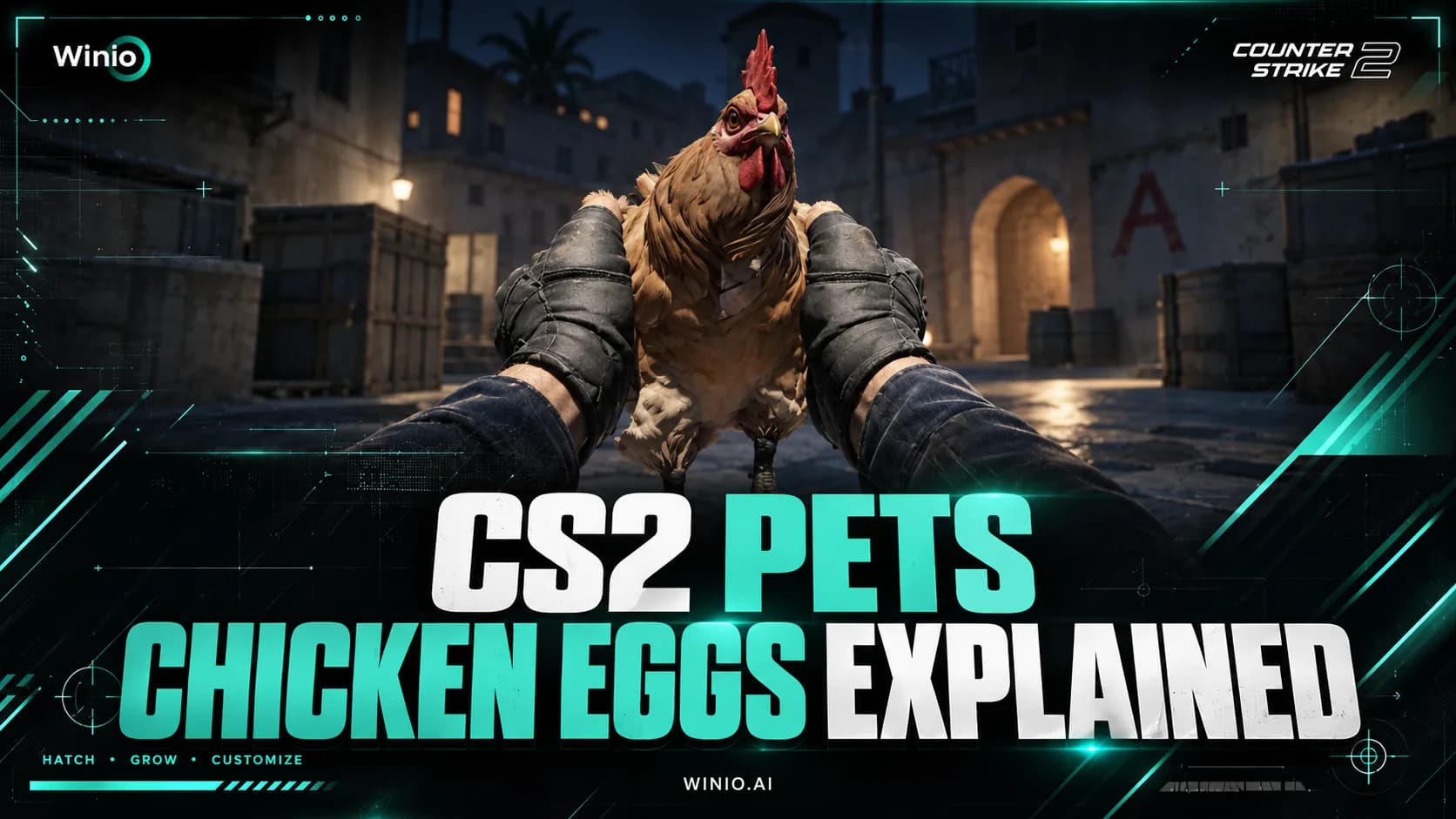
CS2 Pets Guide: How to Get and Hatch a Chicken Egg
Learn how to get a Chicken Egg in CS2, how pets hatch and grow, all discovered chicken breeds, Pet Book features and current drop details.
October 1, 202607:54 AM10 min

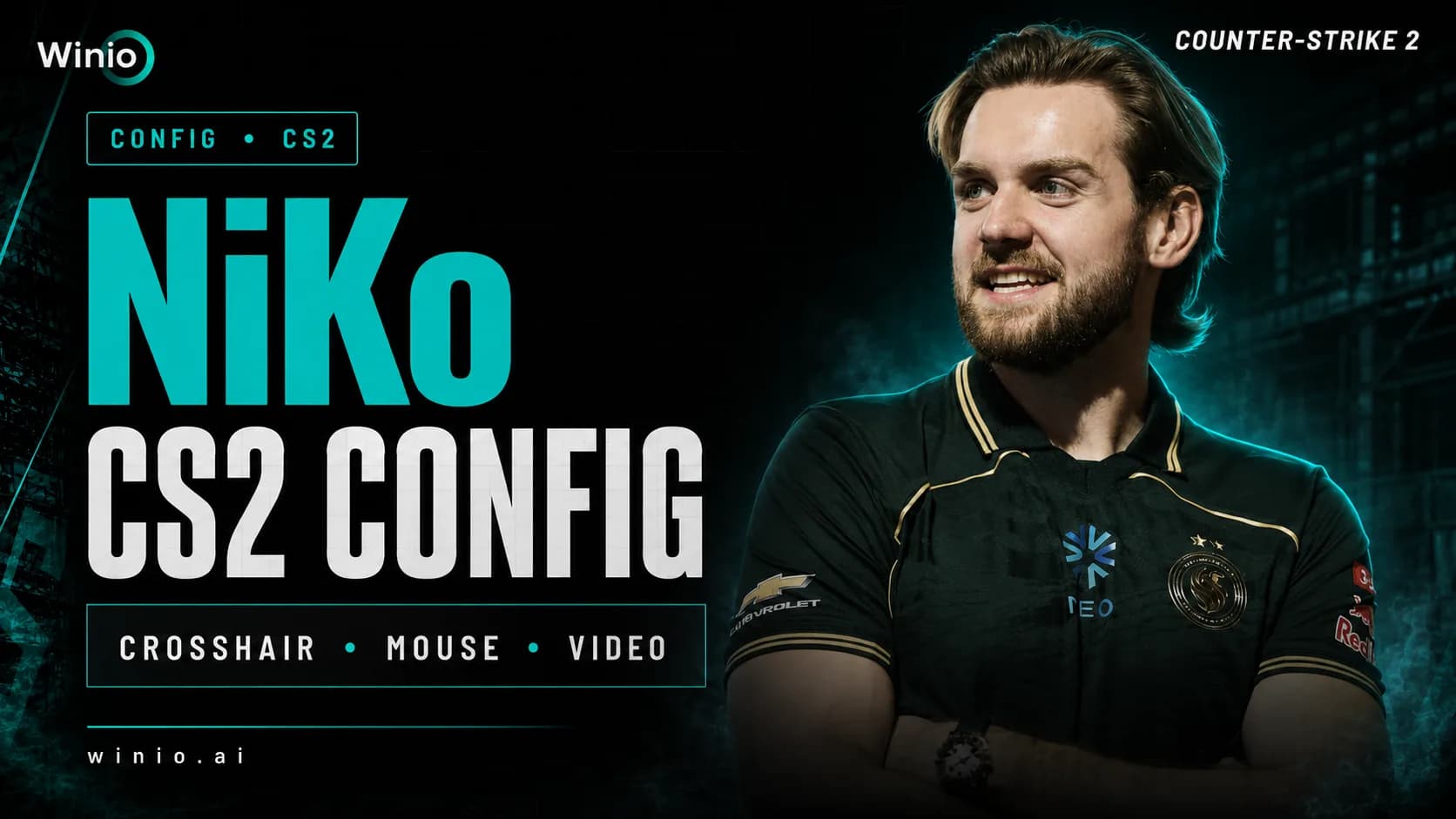
NiKo is one of the most recognizable riflers in Counter-Strike history. Players copy his settings not because they automatically improve aim, but because they reflect the logic of a player known for first-bullet precision: moderate sensitivity, a compact static crosshair, a stretched image and very few visual distractions.
This guide brings together NiKo's latest publicly available CS2 settings, including his mouse, crosshair, viewmodel, video settings, radar, monitor and gear. A ready-to-use autoexec.cfg is included at the end so you can use his setup as a starting point for your own config.
| DPI | 800 | Set in mouse software |
|---|---|---|
| Sensitivity | 0.9 | In-game CS2 sensitivity |
| eDPI | 720 | 800 x 0.9 |
| Zoom Sensitivity | 0.9 | Scoped sensitivity multiplier |
| Polling Rate | 2,000 Hz | Set in mouse software |
| Windows Sensitivity | 6/11 | Default Windows value |
| Resolution | 1280x960 | Fullscreen mode |
| Aspect Ratio | 4:3 stretched | Image stretched to fill the screen |
| Brightness | 93% | In-game video setting |
| FPS Cap | 400 | fps_max 400 |
NiKo changes individual settings more often than many professional players, so the verification date matters more than any promise of a "permanent" config.
| Setting | Value |
|---|---|
| DPI | 800 |
| Sensitivity | 0.9 |
| eDPI | 720 |
| Zoom Sensitivity | 0.9 |
| Polling Rate | 2,000 Hz |
| Windows Sensitivity | 6/11 |
The key number is not sensitivity on its own, but eDPI. It is calculated by multiplying mouse DPI by the in-game sensitivity. For NiKo's setup, the calculation is 800 x 0.9 = 720 eDPI.
ESL Pro League Season 24
Tomorrow 12:00
 LegacyPARIVISION
Prediction: Legacy
ESL Pro League Season 24
Tomorrow 12:00
 FalconsTYLOO
At 720 eDPI, NiKo uses a moderately low sensitivity that suits fine corrections and rifle control. It requires a reasonably large mousepad and more forearm movement, especially for 180-degree turns.
If you consistently stop short of your target after copying it, do not abandon the entire setup immediately. Raise sensitivity by 0.05-0.10 and test the change across several practice sessions.
In the latest available match sample, NiKo used a small static crosshair with no center dot or outline. It covers very little of an opponent model and works well for taps and short bursts.
| Setting | Value |
|---|---|
| Style | Classic Static / cl_crosshairstyle 4 |
| Length | 2 |
| Thickness | 0 |
| Gap | -4 |
| Center Dot | Off |
| Outline | Off |
| RGB Color | 0 / 255 / 145 |
| Alpha | 255 |
NiKo crosshair code: CSGO-HurWU-QvLHO-uJUkC-9DUU8-euzQN
1. Open CS2 and go to Settings.
2. Select Game, then open the Crosshair tab.
3. Click Share or Import.
4. Paste CSGO-HurWU-QvLHO-uJUkC-9DUU8-euzQN and confirm the import.
The crosshair applies immediately, with no restart required. If it looks too thin on your display, try it for several Deathmatch maps first: the same code can look noticeably different at another resolution.
cl_crosshairstyle "4"
cl_crosshairsize "2"
cl_crosshairthickness "0"
cl_crosshairgap "-4"
cl_crosshairdot "0"
cl_crosshair_drawoutline "0"
cl_crosshaircolor "5"
cl_crosshaircolor_r "0"
cl_crosshaircolor_g "255"
cl_crosshaircolor_b "145"
cl_crosshairalpha "255"
cl_crosshairusealpha "1"
cl_crosshair_t "0"
cl_crosshair_recoil "0"
cl_crosshairgap_useweaponvalue "0"
Viewmodel settings control where the weapon appears on screen. NiKo uses the maximum FOV of 68 and moves the model to the right and slightly downward, keeping more of the center of the screen clear.
viewmodel_fov "68"
viewmodel_offset_x "2"
viewmodel_offset_y "0"
viewmodel_offset_z "-1.5"
NiKo plays at 1280x960 with a 4:3 aspect ratio stretched to fill the screen. Stretched scaling makes player models look wider, but it also reduces horizontal field of view compared with 16:9. It does not change hitboxes or give a hidden gameplay advantage; only the image presentation changes.
| Setting | Value |
|---|---|
| Resolution | 1280x960 |
| Aspect Ratio | 4:3 |
| Scaling Mode | Stretched |
| Display Mode | Fullscreen |
| Brightness | 93% |
| Setting | Value |
|---|---|
| Boost Player Contrast | Off |
| Wait for Vertical Sync | Off |
| NVIDIA Reflex Low Latency | Off |
| NVIDIA G-Sync | Off |
| Maximum FPS | 400 |
| Multisampling Anti-Aliasing Mode | 8x MSAA |
| Global Shadow Quality | High |
| Dynamic Shadows | All |
| Model / Texture Detail | Low |
| Texture Filtering Mode | Trilinear |
| Shader Detail | Low |
| Particle Detail | Low |
| Ambient Occlusion | Off |
| High Dynamic Range | Quality |
| FidelityFX Super Resolution | Off (Highest Quality) |
These values are intended for a powerful competitive PC. Do not blindly copy 8x MSAA and high shadows on a weaker system: stable frame times matter more than matching a professional player's visuals. Start with consistent FPS, then raise individual quality settings if your system has enough headroom.
| Setting | Value |
|---|---|
| HUD Scale | 1.1 |
| HUD Color | Bright White |
| Radar Centers the Player | Yes |
| Radar Rotates | Yes |
| Square Radar with Scoreboard | Yes |
| Radar HUD Size | 1 |
| Radar Map Zoom | 0.35 |
hud_scaling "1.1"
cl_hud_radar_scale "1"
cl_radar_scale "0.35"
cl_radar_always_centered "1"
cl_radar_rotate "1"
cl_radar_square_with_scoreboard "1"
A radar scale of 0.35 shows a large portion of the map. NiKo still keeps the radar centered on his player and rotating with his view, which makes quick orientation intuitive. Some in-game leaders prefer a fixed, non-centered map instead, so treat this section as preference rather than a universal rule.
NiKo CS2 Gear
| Category | Model |
|---|---|
| Mouse | Razer DeathAdder V4 Pro NiKo Edition |
| Monitor | ZOWIE XL2586X+, 600 Hz |
| Keyboard | Razer Huntsman V3 Pro TKL 8KHz NiKo Edition |
| Headset | Razer BlackShark V3 Pro NiKo Edition |
| Mousepad | Artisan Ninja FX Zero Soft Black |
| In-Ear Monitors | Linsoul 7HZ Timeless |
| CPU | AMD Ryzen 9 9950X3D |
| GPU | NVIDIA GeForce RTX 5090 |
In his keyboard profile, NiKo uses Rapid Trigger with a 0.3 mm actuation point on movement keys. This can make A and D releases feel faster during counter-strafing, but it may be overly sensitive for everyday typing or for players who are new to analog switches.
| Setting | Value |
|---|---|
| DyAc | Premium |
| Black eQualizer | 0 |
| Color Vibrance | 15 |
| Low Blue Light | 0 |
| Picture Mode | FPS 1 |
| Brightness | 83 |
| Contrast | 50 |
| Sharpness | 9 |
| Gamma | Gamma 3 |
| Color Temperature | User Define: R 93 / G 88 / B 100 |
| AMA | High |
| NVIDIA Digital Vibrance | 60% |
Brightness, gamma and Black eQualizer values do not transfer cleanly between different monitor models. Even with identical numbers, the image may look very different because of panel characteristics, picture profiles and room lighting.
Copying a professional player's config is useful as a controlled experiment. It gives you a coherent starting point and helps you identify which parts suit your playstyle. You do not need to keep every setting unchanged.
1. Keep 720 eDPI for several practice sessions and adjust sensitivity in small steps.
2. Compare 4:3 stretched with your usual resolution under the same conditions, not after a single match.
3. Check crosshair visibility on both bright and dark areas across several maps.
4. Lower video quality if 8x MSAA or high shadows cause inconsistent frame times.
5. Do not copy monitor values literally if you use a different display model.
The best config is the one that stops distracting you. NiKo's settings provide a strong baseline for a rifler, but results still depend on stable FPS, muscle memory, map knowledge, role and consistent practice.
Falcons
TYLOO
9INE

Johnny Speeds
Prediction: 9INE wins

BBL

Sangal

BASEMENT BOYS
Voca

Eternal Fire

Nordic Partners

SINNERS

Lilmix
Astralis
FaZe

Nemesis

Nuclear TigeRES
Falcons
TYLOO
9INE
Johnny Speeds
Prediction: 9INE wins
BBL
Sangal
BASEMENT BOYS
Voca
Eternal Fire
Nordic Partners
SINNERS
Lilmix
Astralis
FaZe
Nemesis
Nuclear TigeRES
Falcons
TYLOO
9INE
Johnny Speeds
Prediction: 9INE wins
BBL
Sangal
BASEMENT BOYS
Voca
Eternal Fire
Nordic Partners
SINNERS
Lilmix
Astralis
FaZe
Nemesis
Nuclear TigeRES