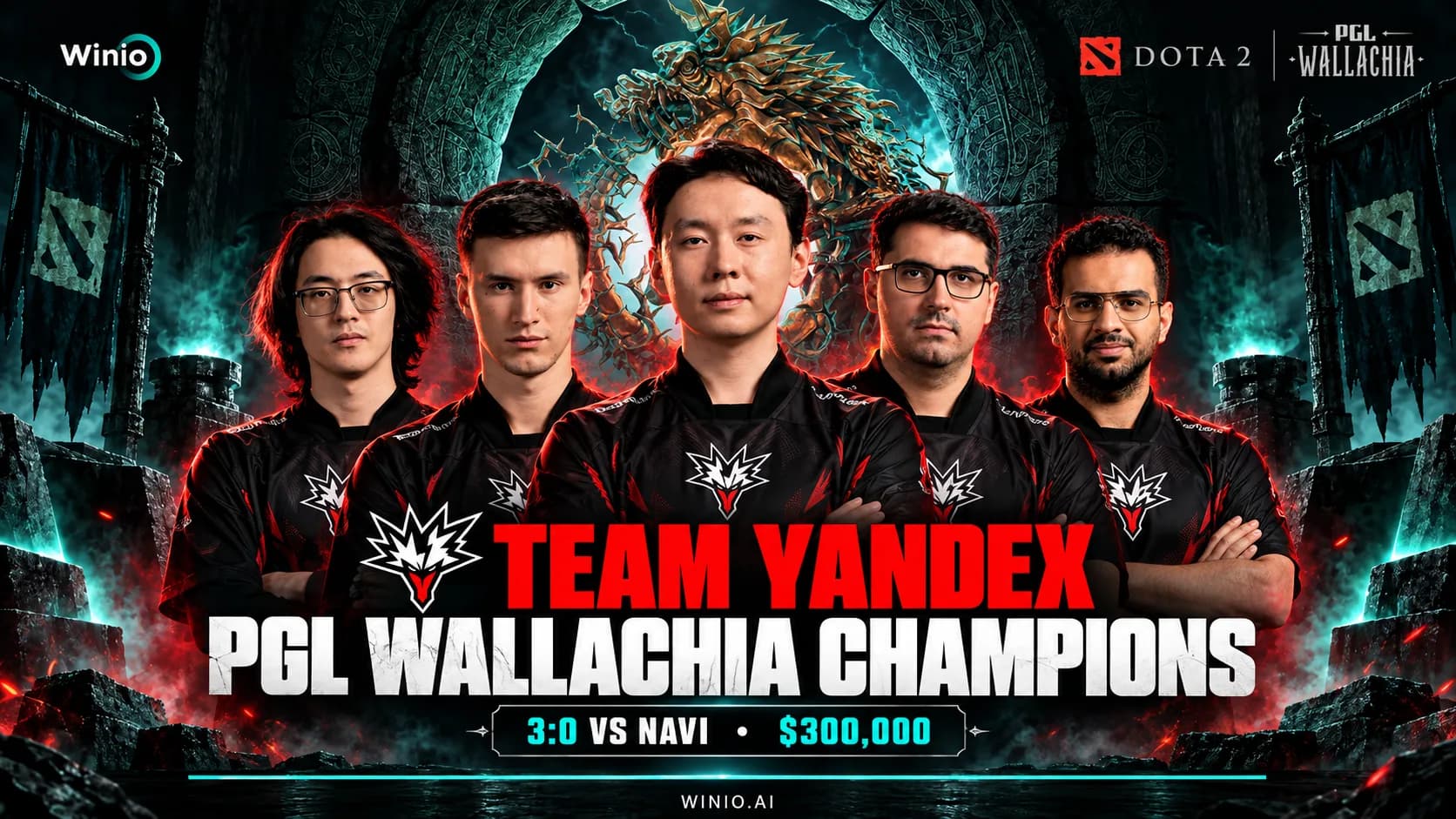
PGL Wallachia Season 9 Results: Team Yandex Win, NAVI Surprise
Team Yandex swept NAVI 3:0 to win PGL Wallachia Season 9. We analyze the champions, NAVI’s final run, surprises and disappointments.
September 28, 202607:28 AM8 min


Yatoro is one of the most consistent and high-performing carries in Dota 2 history. His settings are interesting not because of any “secret tricks,” but because they reflect the approach of a top-tier player: maximum clarity, minimal distractions, and complete focus on the game. In this article, we break down Yatoro’s Dota 2 settings: graphics, interface, camera, and hotkeys. We also explain why they’re used and what actually makes practical sense.
Yatoro doesn’t view settings as a way to gain an advantage. His approach is to remove everything unnecessary and make the game as clean and comfortable as possible for decision-making. Settings are chosen so that the interface doesn’t interfere with reading the game, and controls remain stable in any situation, from laning to chaotic teamfights.
The first important section is the camera. Yatoro has it set up as utilitarian as possible, without effects that might interfere with reading the game.
BLAST SLAM VIII
Today 12:00
 Team YandexLGD Gaming
BLAST SLAM VIII
Today 15:30
 Aurora Gaming1w Team
Yatoro uses a value of 6193. This strikes a balance between speed and precision: the camera is fast enough to instantly shift focus to the desired part of the map, yet remains controllable and doesn’t “jump” past the target. This setting allows for quick reactions and maintains control over positioning.
Yatoro has camera shake disabled in his settings. In Dota 2, many abilities visually shake the screen, such as Earthshaker’s ultimate. This looks impressive but makes it hard to clearly see what’s happening in team fights. Disabling it removes visual noise and improves situational awareness during chaotic moments.
Yatoro uses disabled camera zoom. Zoom offers no practical advantage, but it’s easy to trigger accidentally, especially during intense gameplay. A fixed zoom level keeps the image stable and doesn’t distract from the game.
Yatoro uses quick cast for abilities and items. This allows him to activate abilities instantly at the cursor’s location without an additional mouse click. This is critical for instant reactions and a professional pace. However, this method is not recommended for beginners: the standard activation shows the range and area of effect for abilities and items, and until a player can sense them without visual cues, the default option will be more useful for learning and developing this sense.
Yatoro uses binds to select controlled units and groups. This is necessary for confident control of hero illusions, illusions from Manta Style, as well as summons and creeps with the Helm of the Dominator. Without these binds, managing multiple units becomes slow and imprecise.
Yatoro has a separate bind for the “Move in Direction” command. By default, when you click to move, the hero calculates the shortest route and turns toward the path, not toward the click. If you need, for example, to look toward the high ground or use Force Staff strictly in the desired direction, standard movement can turn the hero to the left or right. This bind allows you to control the hero’s line of sight regardless of terrain and route.
Yatoro uses a simplified background and an enlarged minimap, and hero icons are only displayed when ALT is held down. The minimap is the primary source of information in Dota 2: it is used to track enemies, allies, runes, and movements. A clear and easy-to-read map allows you to react instantly to events and make decisions without unnecessary visual distractions.
Yatoro highlights the hero, neutral spawn zones, and tower attack zones when ALT is held down. Neutral spawn zones help with efficient farming: pulling neutral creeps and stacking them for yourself, and avoiding accidentally blocking creeps. Tower attack zones are essential for precise movement and proper positioning of creeps on the lane, which is critical for high-level carries.
In competitive Dota 2, visual aesthetics take a backseat, clarity and sharpness are what matter. That’s why unnecessary effects are usually disabled in the settings so they don’t create a visual clutter, and the movements of units and heroes are visible as clearly as possible. The second element crucial for competitive gaming is maximum frame rate. It allows you to see the movement of heroes and units smoothly, without blurring or stuttering, which helps you correctly interpret their actions and react faster. Both of these factors lead players to disable blur effects, glow effects, grass, reflections, and others to improve image clarity and performance for maximum FPS.
Aside from FPS and readability, the rest of the graphics are a matter of personal preference and your PC’s power. As Yatoro himself said about his settings: “Today I feel like playing with shadows. I’m in a ‘shadowy’ mood.” Below are Yatoro’s graphics settings, which he showed on his stream:
The biggest mistake is blindly copying the settings and keybinds of professional players. A pro player’s settings reflect their habits, reaction speed, and hardware, so simply adopting them often hinders your gameplay.
The right approach is to understand the purpose of each setting and adapt it to your own habits and PC capabilities.
Examples:
In Dota 2, there are no settings that directly affect your win rate. Any changes only affect convenience, readability, and clarity: how quickly you see hero movements, how precisely you can control your hero, and how clearly information from the minimap and interface is perceived. A properly configured interface and controls help you focus on the game and minimize visual clutter, but they do not give you a direct advantage over your opponent.
The main takeaway: don’t copy blindly, but with understanding. Figure out why each setting is needed, and adapt it to your habits, playstyle, and your PC’s capabilities. This way, you’ll get a comfortable and effective gaming environment, rather than just someone else’s controls and visuals. For a deeper analysis of pro matches, it’s helpful to use Winio to get outcome predictions: they show which decisions and actions actually influence the result and help you watch professional games with an understanding of the key moments.

Team Yandex
LGD Gaming
Aurora Gaming
1w Team
Team Yandex
LGD Gaming
Aurora Gaming
1w Team
Team Yandex
LGD Gaming
Aurora Gaming
1w Team