CS2 Pets Guide: How to Get and Hatch a Chicken Egg
Learn how to get a Chicken Egg in CS2, how pets hatch and grow, all discovered chicken breeds, Pet Book features and current drop details.
October 1, 202607:54 AM10 min

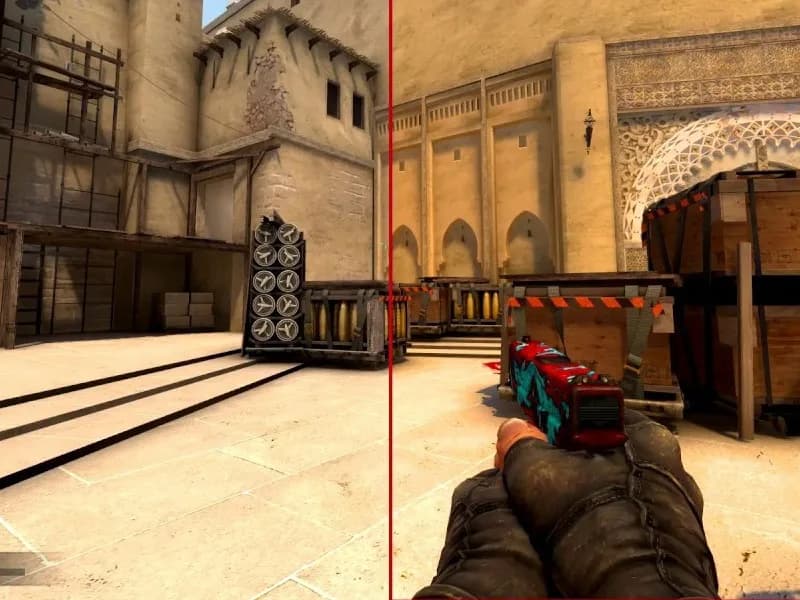
In Counter-Strike 2, visibility matters more than most players realize. A slightly darker corner, washed-out shadows, or overly bright highlights can easily affect reaction time and target recognition during a round.
That’s why many players tweak gamma, brightness, monitor settings, and GPU color settings instead of relying on the default image. The goal is simple: make enemies easier to spot without turning the game into an overexposed mess or sacrificing FPS.
This guide breaks down how gamma works in CS2, how to adjust it properly, and what settings actually make sense depending on your monitor and setup.
Brightness and gamma are often treated as the same thing, but they affect the image differently.
Brightness changes the overall light level across the entire screen. If you push it too high, black areas start looking gray and the whole image loses depth.
ESL Pro League Season 24
Tomorrow 12:00
 LegacyPARIVISION
Prediction: Legacy
CIS LAN Championship #8
LIVE
 K27Nemesis
Gamma, on the other hand, affects midtones and shadow transitions. Instead of simply adding light everywhere, it changes how darker areas blend into brighter ones.
In CS2, this matters because Source 2 lighting is much more dynamic than old CS:GO lighting. Maps like Ancient, Nuke, and Vertigo have stronger shadow contrast and more aggressive lighting transitions.
A good gamma setup can help with:
A bad setup usually causes one of two problems:
Even a small visibility improvement can make a difference in competitive matches. Most players leave CS2 at the default gamma value, but depending on your monitor, room lighting, and GPU settings, the game can look very different from one setup to another.
Here’s why players adjust gamma in CS2:
| Reason | What It Helps With |
|---|---|
| Better shadow visibility | Makes enemy silhouettes easier to notice in dark areas |
| Cleaner contrast | Preserves detail without overexposing bright areas |
| Reduced eye strain | Makes long sessions more comfortable |
| More consistent visibility | Helps balance darker and brighter areas across maps |
The difference is especially noticeable on:
The easiest way to adjust gamma directly in CS2 is through the developer console.
You can now open the console using the ~ key.
Optional: Enable console through Steam launch options
This opens the console automatically when the game starts. If the default tilde key conflicts with your keyboard layout:
The main gamma command in CS2 is r_fullscreen_gamma. In CS2, lower values make the image brighter, while higher values make it darker and more contrast-heavy.
| Value | Result |
|---|---|
| 2.0–2.1 | Brighter shadows and easier visibility |
| 2.2 | Default balanced image |
| 2.3–2.5 | Darker image with stronger contrast |
A good starting point is r_fullscreen_gamma 2.2.
Then test:
There are a few things worth knowing before changing gamma:
Once you find a value you like, you can save it inside autoexec.cfg so it loads automatically.
If you don’t want to use console commands, the in-game brightness slider is the simplest option.
How to adjust brightness:

| Brightness | Result |
|---|---|
| 90–100% | Balanced image for most players |
| 100–105% | Slightly brighter visibility |
| 80–90% | More contrast-heavy image |
| Above 110% | Often looks washed out |
Brightness alone usually isn’t enough because it affects the whole screen equally.
That’s why many players combine:
This keeps shadows readable without destroying contrast. Many players prefer enabling Boost Player Contrast for slightly clearer player visibility, although the impact of this setting varies by setup. It’s worth testing yourself rather than treating it as a mandatory competitive setting.
Your monitor and GPU control panel affect visibility just as much as in-game settings. If CS2 still looks too dark or overly bright after adjusting gamma, the issue is often outside the game itself. You should try configuring your graphics driver and monitor. Below, we suggest good starting points for GPU and monitor settings, but don’t be afraid to adjust them as needed.
Open NVIDIA Control Panel
Recommended baseline:
| Setting | Suggested Value |
|---|---|
| Brightness | 50% |
| Contrast | 50–60% |
| Gamma | 1.00–1.10 |
| Digital Vibrance | 60–80% |
Avoid maxing out saturation or gamma immediately. Overdoing it usually makes CS2 look unnatural and tiring to play.
Open AMD Software: Adrenalin Edition
Recommended approach:
Gaming monitors often include visibility-focused features that help more than raw brightness alone.
Common useful settings:
| Setting | Recommended Range |
|---|---|
| Brightness | Depends on room lighting |
| Contrast | 45–60 |
| Gamma | Around 2.2 |
| Black Equalizer / Shadow Boost | Moderate values |
| Color Vibrance | Slight increase only |
Features like Black eQualizer, Shadow Boost, Dynamic Black Stabilizer can help reveal darker areas more clearly without making the whole image gray. The exact names vary depending on the monitor brand.
Don’t Copy Settings Blindly. The same values can look completely different depending on:
Instead of copying someone else’s numbers exactly, use them as a starting point and adjust gradually.
| Step | What To Do | Expected Result |
|---|---|---|
| Prepare monitor | Adjust brightness and contrast first | Image looks balanced before launching CS2 |
| Set in-game brightness | Start around 100% | No overexposed highlights |
| Set gamma | Use r_fullscreen_gamma 2.2 | Balanced visibility |
| Test different values | Try 2.0–2.4 | Find comfortable contrast |
| Test on maps | Check Ancient, Nuke, Inferno | Shadows stay readable |
| Save settings | Add to autoexec.cfg | Settings stay after restart |
There’s no universal “best” gamma setting. The ideal setup depends on your monitor, lighting, and personal preference.
Gamma settings won’t magically improve aim or game sense, but they can make CS2 noticeably more comfortable to play. A properly tuned image helps reduce eye strain, makes darker angles easier to read, and creates more consistent visibility across maps. Start with brightness around 100%, gamma around 2.2, then adjust gradually from there.
A lot of competitive players also use platforms like Winio to follow match trends, compare team form, and look at AI-based esports predictions while analyzing pro CS2 games. Understanding visibility and settings helps mechanically — understanding how rounds develop helps strategically.
K27
Nemesis

FOKUS

BBL

Eternal Fire

BASEMENT BOYS

Voca

100 Thieves

Ninjas in Pyjamas

Johnny Speeds

Alliance

Nemiga

Isurus

Procyon

Quintessence

RED Canids Academy
K27
Nemesis
FOKUS
BBL
Eternal Fire
BASEMENT BOYS
Voca
100 Thieves
Ninjas in Pyjamas
Johnny Speeds
Alliance
Nemiga
Isurus
Procyon
Quintessence
RED Canids Academy
K27
Nemesis
FOKUS
BBL
Eternal Fire
BASEMENT BOYS
Voca
100 Thieves
Ninjas in Pyjamas
Johnny Speeds
Alliance
Nemiga
Isurus
Procyon
Quintessence
RED Canids Academy